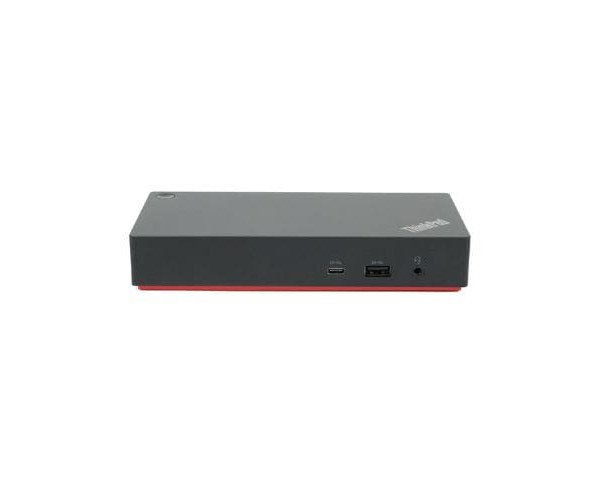
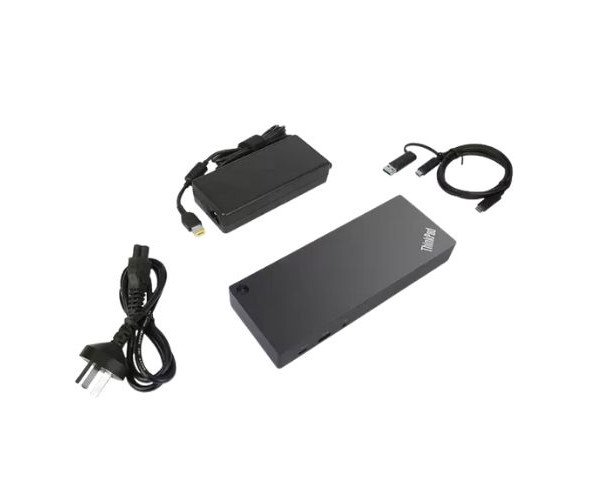
About the Lenovo 40AF0135US Think-Pad Hybrid USB-C with USB-A Dock
The Lenovo 40AF0135US ThinkPad Hybrid USB-C with USB-A Dock gives you one easy connection for your laptop and all devices. It helps boost productivity with fast data transfers, dual display support, and multiple ports.
Lenovo 40AF0135US ThinkPad Hybrid USB-C with USB-A Dock in BD
This Lenovo 40AF0135US ThinkPad Hybrid USB-C with USB-A Dock is perfect for the professional needing more for less clutter, faster connectivity, and more screens space. Because the inclusion of both USB-C and USB-A ports ensures compatibility with all laptops, it is just right for work or remote setups.
User Experience
The Lenovo 40AF0135US ThinPad Hybrid USB-C with USB-A Dock pretty much feels like an upgrade at the desk in seconds. You plug in this single cable and it connects your laptop to multiple displays, wired network, and all your devices. Users love the idea of having their cabling reduced and enjoying faster access to files and power. The well-built yet simple design makes it well-suited for daily work-home scenarios. Added to its reputed reliability from Lenovo, it works smoothly with all other laptop makes, not just ThinkPad models. True plug-and-play bliss, just adds comfort and productivity.
Why Choose the Lenovo 40AF0135US Think-Pad Hybrid USB-C with USB-A Dock?
Opt for the Lenovo 40AF0135US ThinkPad USB-C with USB-A Dock, and you will be assured of dependable, flexible, and convenient usage. This dock supports modern USB-C, as well as, older USB-A laptops, making it a future-ready product. Dual 4K displays, fast charging, and multiple USB ports for multitasking add to the beauty of this dock. It organizes your desk but leaves you with quick access to data, power, and network. Smart and lasting, the Lenovo 40AF0135US ThinkPad Hybrid with USB-A Dock is the perfect solution to a busy office environment or working from home.
Installation Steps
- Place the dock on your desk near your laptop.
- Connect the power adapter to the dock and plug it into a wall outlet.
- Use the included USB-C cable to connect the dock to your laptop.
- If your laptop uses USB-A, attach the included USB-C to USB-A adapter.
- Connect your external monitors to the HDMI or DisplayPort ports.
- Plug in your USB devices (keyboard, mouse, storage, etc.) to the dock.
- Connect the Ethernet cable for internet access (optional).
- Your system will automatically detect the dock and set up the drivers.
- Work and enjoy your devices by connecting everything with just one dock.