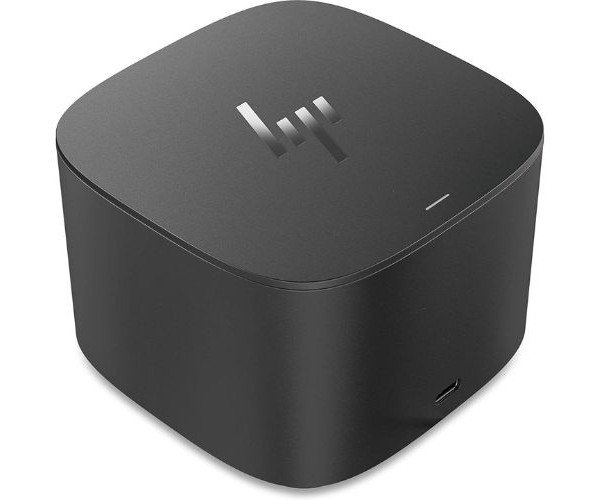
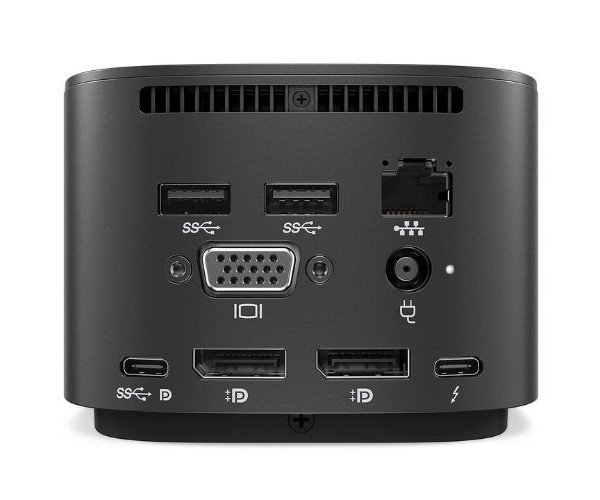
About the HP Thunderbolt 3TR87AA G2 230W Dock Station
The HP Thunderbolt 3TR87AA G2 230W Docking Station offers fast connectivity, reliable charging, and versatile port options for professionals. Designed to support modern work setups, it powers devices, extends displays, and keeps your workspace clean and productive.
HP Thunderbolt 3TR87AA G2 230W Docking Station in BD
The HP Thunderbolt 3TR87AA G2 230W Docking is made for professionals who need more from their workstations. With powerful charging, rich connectivity, and multiple display support, it simplifies device management and helps you work smarter—at home or in the office.
User Experience
Using the HP Thunderbolt 3TR87AA G2 230W Docking Station transforms your desk into a high-performance command center. With just one Thunderbolt cable, your laptop charges while instantly connecting to dual monitors, external drives, a full keyboard, and a mouse. Transferring large files is smooth, and video quality is crystal-clear. Its compact, sleek design keeps things tidy, while the powerful 230W adapter ensures stable performance. The plug-and-play experience works right out of the box. Whether you're on Windows or macOS, this docking station adapts quickly, making it the perfect productivity partner.
Why Choose the HP Thunderbolt 3TR87AA 230W Docking Station?
Choosing the HP Thunderbolt 3TR87AA G2 230W Docking means choosing speed, power, and simplicity. Its Thunderbolt 3 technology ensures faster data transfers, more display options, and strong device charging in one cable. Unlike other docks, it offers robust compatibility, multi-monitor support, and HP’s trusted build quality. Ideal for tech-heavy professionals, creators, and remote workers, it eliminates the need for multiple adapters and power bricks. The HP Thunderbolt 3TR87AA G2 230W Dock Station stands out with premium features, solid design, and easy daily use. It's the smart upgrade your workspace deserves.
Installation Steps
-
Unpack the Docking Station – Remove the HP Thunderbolt 3TR87AA G2 230-W Docking Station from the box and check included cables.
-
Place on Desk – Position it on a flat surface near your laptop and monitor setup.
-
Connect Power Adapter – Plug the 230W power supply into the dock and a wall outlet.
-
Attach to Laptop – Use the included Thunderbolt 3 cable to connect the dock to your laptop.
-
Connect Peripherals – Plug in USB devices, HDMI/DisplayPort cables, Ethernet, and audio jack.
-
Wait for Auto Setup – Most systems auto-detect and install drivers. If prompted, follow on-screen setup.
-
Start Using – Once everything lights up and displays connect, you’re ready to go!