About the Intel SSDPD21K015TA01 D4800X 1.5 TB 2.5in PCIe 2x2 SSD
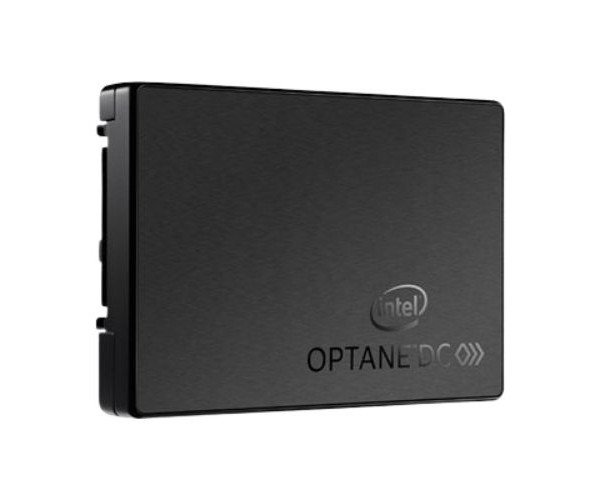
The Intel SSDPD21K015TA01 D4800X 1.5TB 2.5in PCIe 2x2 SSD is a high-speed, reliable solid-state drive built for enterprise and data-intensive tasks. With fast performance, large capacity, and endurance, it ensures smooth operations and faster data access.
Intel SSDPD21K015TA01 D4800X 1.5TB 2.5in PCIe 2x2 SSD in BD
The Intel SSDPD21K015TA01 D4800X 1.5TB 2.5'' PCIe 2x2 SSD is designed for businesses and professionals who need fast access to large data sets. Using Intel's innovative 3D XPoint memory, this SSD provides excellent performance, reliability, and endurance in a compact size.
User Experience
Users who upgrade to the Intel SSDPD21K015TA01 D4800X 1.5TB 2.5'' PCIe 2x2 SSD notice a major boost in speed and responsiveness. It handles heavy data tasks like virtualization, databases, and analytics smoothly without lag. File transfers complete in seconds, not minutes. Even under constant use, this SSD stays stable, cool, and fast. Its ultra-low latency means real-time data handling is now easier than ever. Whether you're working in IT, development, or business data systems, the drive helps speed up your day-to-day work with no worries about performance drops or slowdowns.
Why Choose Intel SSDPD21K015TA01 D4800X 1.5TB 2.5in PCIe 2x2 SSD?
Choosing the Intel SSDPD21K015TA01 D4800X 1.5TB PCIe 2x2 SSD means you're investing in quality and durability. It’s built with Intel's advanced 3D XPoint memory that delivers faster speeds and higher endurance than traditional NAND SSDs. Its low power usage helps save energy while its 2.5-inch form factor makes it easy to install in existing systems. You can trust this SSD to handle high workloads, large files, and demanding applications without slowing down. Whether you're managing servers, enterprise storage, or just want ultra-fast data access, this drive is the smart choice.
Installation Steps
-
Power off your computer or server completely.
-
Open the case to access the internal drive bays.
-
Locate a U.2 (2.5-inch PCIe) drive slot on your motherboard or use an adapter if needed.
-
Connect the SSD to the U.2 interface carefully.
-
Secure the SSD using screws if the drive bay requires it.
-
Close the system case and reconnect power.
-
Power on the system and enter BIOS/UEFI to confirm SSD detection.
-
Boot into your operating system and initialize the drive in Disk Management.
-
Format the drive to prepare it for storage or OS installation.



-70x60h.png "Intel 1.92TB S4520 SATA SSD (SSDSC2KB019TZ01)")


